Check source and translation
Captions make it easier to inspect what was recognized and translated before relying only on generated voice.
VoxShift is not only about translated speech output. It also shows real-time AI subtitles: the Live screen keeps the line being spoken in “Now” and finished lines in “History”, newest first. Captions can also appear in the built-in subtitle window, with no browser needed, or in a stream layout through OBS WebSocket text source updates.
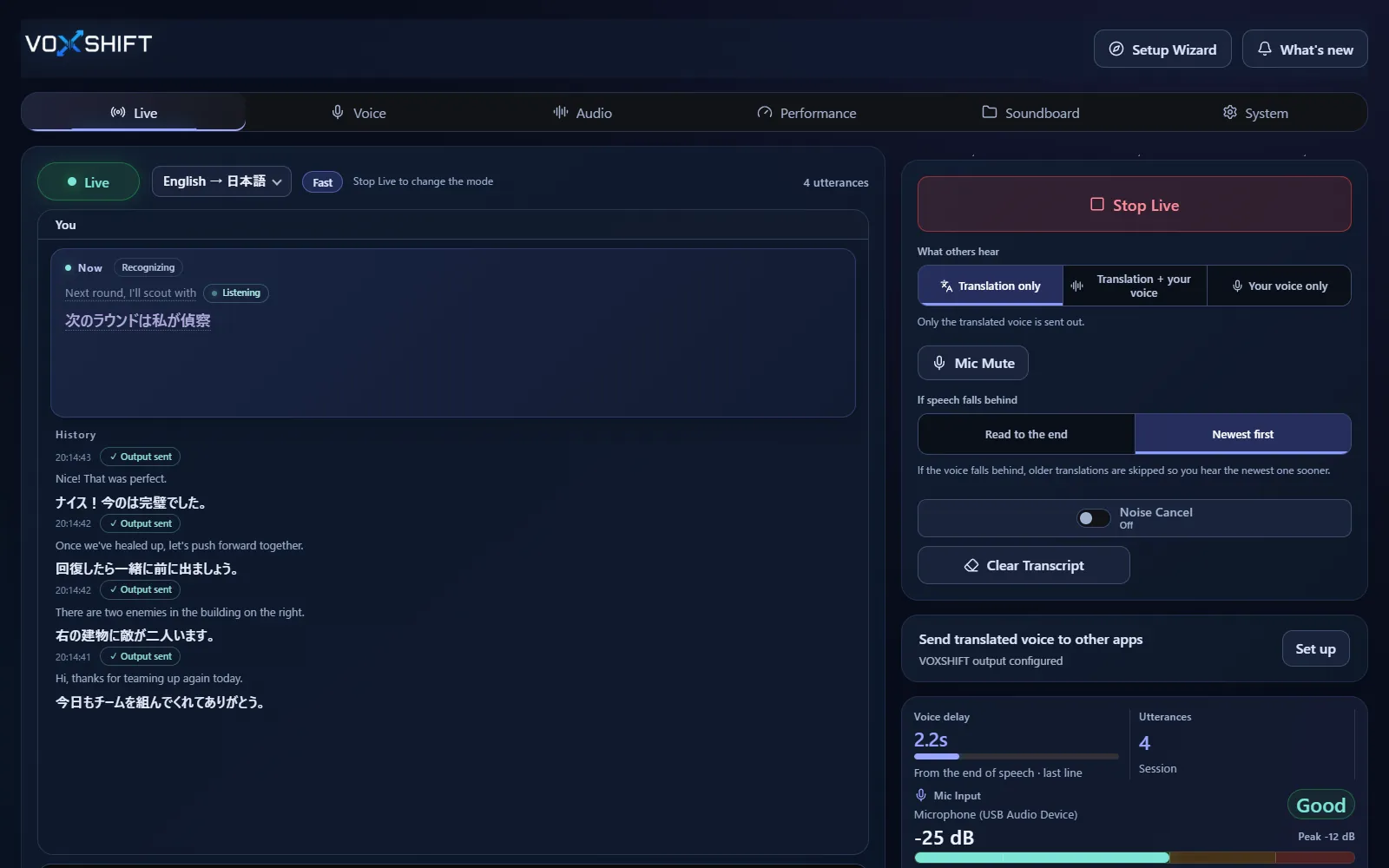
Captions make it easier to inspect what was recognized and translated before relying only on generated voice.
Use OBS WebSocket to update text sources with translated captions for stream overlays and recordings.
Caption timing, line breaks, latency, and GPU load vary by setup. Test with the free version before production use.
Live voice translation requires an NVIDIA CUDA GPU (GTX 16 / RTX 20 series or newer) with 4 GB VRAM or more, and results also depend on your audio devices and routing. Test the free version (Steam Demo or Microsoft Store free trial) on your own PC before purchasing. It limits each Live session to 10 minutes, translates into English only, uses a fixed light model set, and allows up to 3 soundboard items.
No. VoxShift is a Windows app for voice translation and caption workflows. It is separate from OS-level live captions.
You can use caption checking as part of the workflow. VoxShift is strongest when captions, translated speech, and routing are tested together.
Yes. Partner subtitles listen to the other side's audio, such as a call, game, or video, and show it as translated captions. App-specific capture and source separation depend on your Windows audio setup, so test the free version first.
VoxShift does not guarantee perfect per-app audio capture or source separation. It depends on your Windows audio device setup, so test the exact app and route with the free version.
Yes. The built-in subtitle window shows translated captions on top of other windows without a browser, and for OBS streams VoxShift can update a text source placed as a caption overlay. How it looks can vary by app and display mode, so check it with the free version.
No. Recognition and translation quality depend on audio quality, speech, language pair, selected models, and PC performance.
Voice translation is highly dependent on your PC. Before buying, check your PC, devices, and latency with the free version. Steam and Microsoft Store sell separate products, each a one-time purchase.