Desktop audio to captions
Follow speech from browser videos, calls, and other routed PC audio as translated text.
VoxShift can turn incoming or desktop audio into translated partner subtitles on Windows. Use them to follow videos, calls, and stream rehearsals while your microphone is translated into speech as a separate workflow. Audio capture depends on your Windows devices and source routing, so verify the exact setup with the free version.
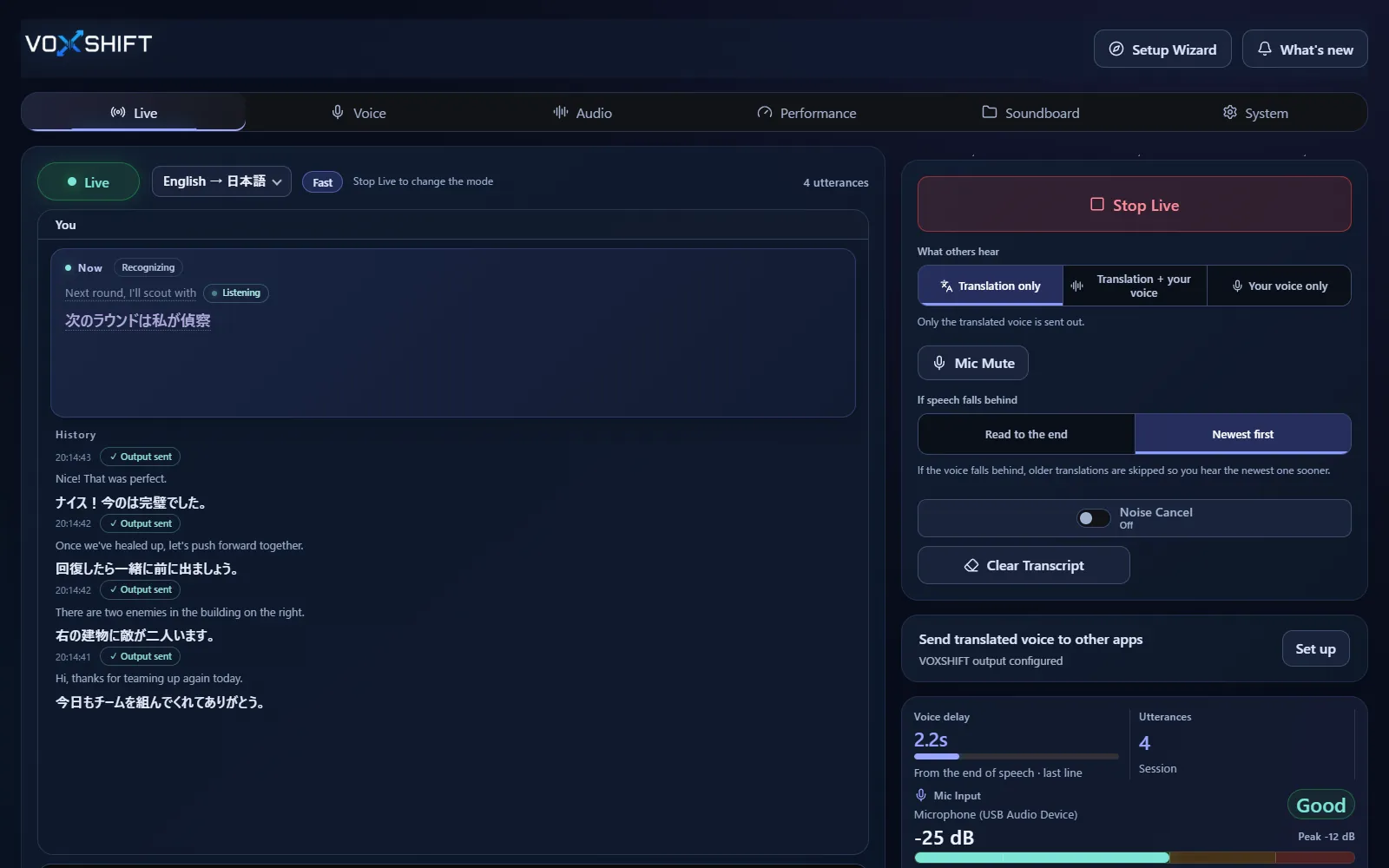
A system audio translator listens to an audio route exposed by Windows, transcribes the speech, and shows translated captions. VoxShift uses that workflow for partner subtitles from incoming or desktop audio; translated speech output is only for your own microphone.
Follow speech from browser videos, calls, and other routed PC audio as translated text.
Your microphone is translated into generated speech for VC, while incoming audio is shown as captions and never played back as translated voice.
Windows device selection, app routing, DRM, volume, and source separation affect what can be captured.
Match the input source and output to what you actually need to understand or send.
| Input | VoxShift output | Typical use |
|---|---|---|
| Your microphone | Translated speech and captions | Discord, game VC, meetings |
| System or desktop audio | Translated captions | Videos, calls, PC audio |
| OBS text source | On-stream translated captions | Livestream overlays |
Use translated captions to inspect audio that plays on your PC while keeping microphone translation and routing in the same app.
Test browser video audio, meeting audio, and OBS rehearsal workflows when Windows can expose the audio route you need.
Perfect per-app capture is not promised. Results depend on Windows audio devices and the exact app route.
Live voice translation requires an NVIDIA CUDA GPU (GTX 16 / RTX 20 series or newer) with 4 GB VRAM or more, and results also depend on your audio devices and routing. Test the free version (Steam Demo or Microsoft Store free trial) on your own PC before purchasing. It limits each Live session to 10 minutes, translates into English only, uses a fixed light model set, and allows up to 3 soundboard items.
Yes, as translated captions. Partner subtitles can show speech from calls or videos playing on your PC, but the result depends on your Windows audio route and device setup. Use the free version first.
If the audio can be routed as an input on your Windows setup, it can be tested. DRM, volume, source separation, and audio quality can affect results.
VoxShift does not guarantee perfect per-app capture or source separation. Test the exact app and route with the free version.
No. Incoming or desktop audio is shown as translated captions and is never played back as translated voice. Translated speech output is for your own microphone.
Voice translation is highly dependent on your PC. Before buying, check your PC, devices, and latency with the free version. Steam and Microsoft Store sell separate products, each a one-time purchase.